Description
These instructions will enable you to backup your ESXi, including free ESXi, VMs using GhettoVCB and a cron job.
Using these instructions may give you problems during a future VMWare upgrade. It is better to use the ghettoVCB script only. I have modified it to work with VMWare 6.7, check back soon for a future post on using the script only.
Instructions
Get the vib
Download the GhettoVCB files
Unzip the files and upload those to a datastore (in this case, my datastore is named datastore2)
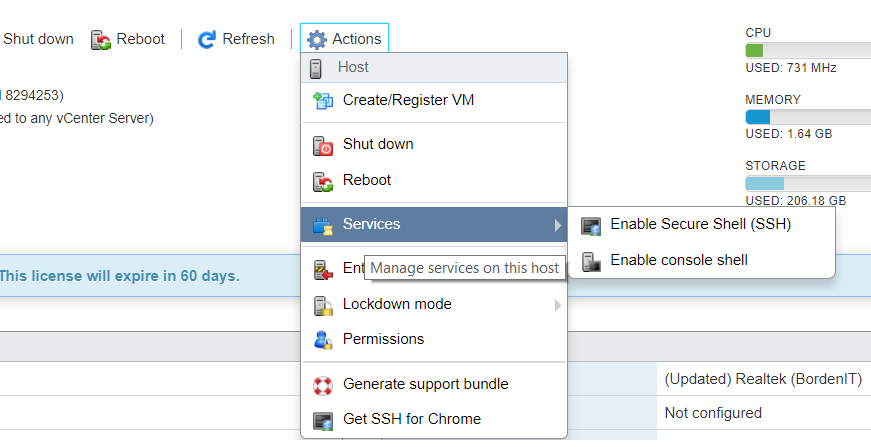
Enable Secure Shell and Console Shell
Ensure both Secure Shell (SSH) and console shell are enabled in ESXi by logging into ESXi and going to Host->Actions->Services
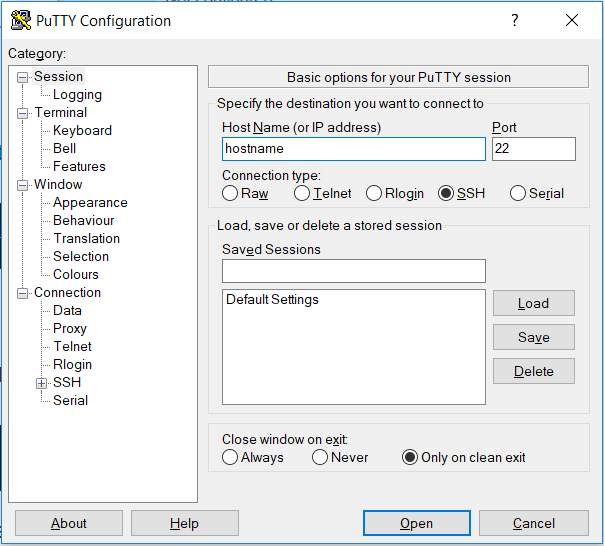
Using Putty, Get To Work
Connect to the server via Putty (or other SSH client) over the standard port 22.
Run the following commands to install the vghetto-GhettoVCB.vib
[root@hostname:~] cd vmfs/volumes/datastore2
[root@hostname:~] esxcli software vib install -v /vghetto-ghettoVCB.vib -f
Keep the Following Time Formatting in Perspective
Remember this time format. In the local.sh file indicated below, the time is 0 minutes, 23 hours, on weekdays number 0 and 3. Day 0 is Sunday and Day 3 is Wednesday.
# ┌───────────── minute (0 - 59)
# │ ┌───────────── hour (0 - 23)
# │ │ ┌───────────── day of the month (1 - 31)
# │ │ │ ┌───────────── month (1 - 12)
# │ │ │ │ ┌───────────── day of the week (0 - 6) (Sunday to Saturday;
# │ │ │ │ │                                   7 is also Sunday on some systems)
# │ │ │ │ │
# │ │ │ │ │
# 0 23 * * 0,3 command to execute
Modify the local.sh file
[root@hostname:~] cd /etc/rc.local.d
[root@hostname:~] vi local.sh
#!/bin/sh
# local configuration options
# Note: modify at your own risk! If you do/use anything in this
# script that is not part of a stable API (relying on files to be in
# specific places, specific tools, specific output, etc) there is a
# possibility you will end up with a broken system after patching or
# upgrading. Changes are not supported unless under direction of
# VMware support.
# Note: This script will not be run when UEFI secure boot is enabled.
#Kill cron service
/bin/kill $(cat /var/run/crond.pid)
#Ensure scheduled task is added
/bin/echo '0 23 * * 0,3 /opt/ghettovcb/bin/ghettoVCB.sh -a > /dev/null'>> /var/spool/cron/crontabs/root
#Start cron service
/usr/lib/vmware/busybox/bin/busybox crond
#Ensure backup directories are set properly
sed -i 's/dlgCore-NFS-bigboi.VM-Backups/datastore2/g' /etc/ghettovcb/ghettoVCB.conf
sed -i 's/mini-local-datastore-hdd/datastore2/g' /opt/ghettovcb/bin/ghettoVCB.sh
sed -i 's/WILLIAM_BACKUPS/backups/g' /etc/ghettovcb/ghettoVCB.conf
sed -i 's/WILLIAM_BACKUPS/backups/g' /opt/ghettovcb/bin/ghettoVCB.sh
#Ensure number of backups is set to 5
sed -i 's/VM_BACKUP_ROTATION_COUNT=3/VM_BACKUP_ROTATION_COUNT=5/g' /opt/ghettovcb/bin/ghettoVCB.sh
sed -i 's/VM_BACKUP_ROTATION_COUNT=3/VM_BACKUP_ROTATION_COUNT=5/g' /etc/ghettovcb/ghettoVCB.conf
#Ensure not referencing random file share
sed -i 's/NFS_SERVER=172.30.0.195/NFS_SERVER=bordenit.com/g' /opt/ghettovcb/bin/ghettoVCB.sh
sed -i 's/NFS_SERVER=172.30.0.195/NFS_SERVER=bordenit.com/g' /etc/ghettovcb/ghettoVCB.conf
#Ensure not referencing random email address
sed -i 's/EMAIL_SERVER=auroa.primp-industries.com/[email protected]/g' /opt/ghettovcb/bin/ghettoVCB.sh
sed -i 's/EMAIL_SERVER=auroa.primp-industries.com/[email protected]/g' /etc/ghettovcb/ghettoVCB.conf
exit 0When done editing, hit the escape button, then type “wq!” to save and close the file.
Make sure the local.sh file is executable
[root@hostname:~] chmod a+x ./local.shExecute local.sh and Verify There are No Errors
[root@hostname:~] ./local.shSave configuration changes
[root@hostname:~] auto-backup.shA summary of the changes that were made to the local.sh file should output in the console.
Fully Test the Changes
Shut down VMs, reboot host, monitor logs with grep and occasionally look at your datastore folder to ensure the backups are running on schedule.
[root@hostname:~] grep "ghettoVCB.sh" /var/log/syslog.logRestoring a Backup
To restore a backup, don’t bother with the ghettoVCB restoration script. It’s clunky and ugly. Just go into the ESXi console, shutdown the current VM, select Create / Register VM, then select the vmx file from the backup that you would like to restore. Power on the restored VM and if it works ok, delete the old VM.